The Shooting Interface is where a Scribe Operator will spend the majority of their time during the digitization process. We can break it down into 4 segments: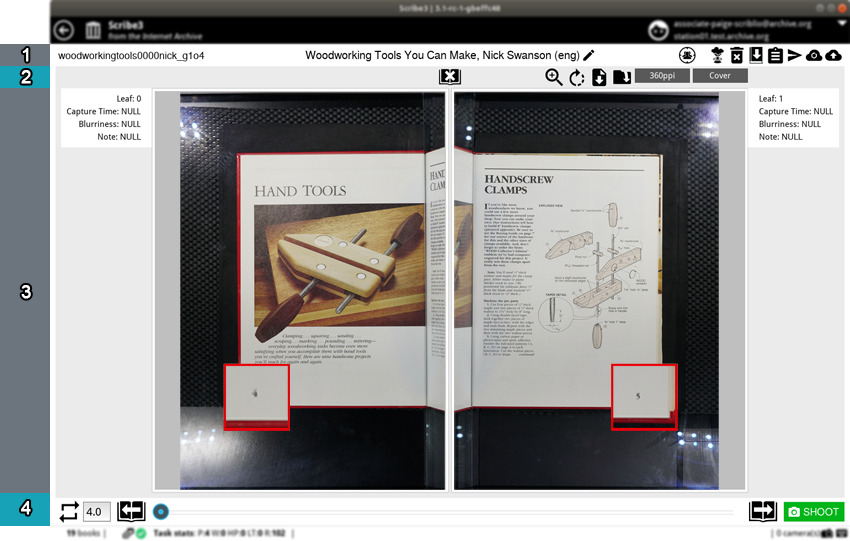
- Book Action Bar
- Leaf Action Bar
- Display Panel
- Footer
Book Action Bar

The Book Action Bar contains information and features for the book. A similar set of actions can be accessed from the Scribe Dashboard's book panel for an item.
-
Book Identifier
The item's identifier is displayed at the top, left.
 No identifier indicates it is not a preloaded item and an identifier has not been generated yet on the Book Metadata form for a local metadata item.
 -
Book Metadata
Displays the following metadata for the book: 'title','creator' ('language')
 "Edit book metadata" transitions back to the Book Metadata form.
 -
 Switch marker key
 This feature is for an upcoming revamp/improvement of the corrections workflow.
 -
 Reset book
 Please do not attempt to use this feature. It is currently being re-worked to allow you to reset and reuse a claimed, but not uploaded preloaded item.
 -
Deletes the local copy of the book, stored on the scribe. This feature does not affect anything on archive.org. Delete book from ScribeThis action cannot be reversed. If a copy was not uploaded to archive.org, it cannot be recovered.
 -
Exports a copy of the item's files to a local folder on the scribe. Export bookThis action must be performed before the item is uploaded. Once an item is queued for upload, the "Export book" feature will no longer be available, the upload cannot be cancelled, and the item will be automatically removed from the scribe after it successfully uploads and is ready for the IA Processing team.
 -
Enter notes about the book's condition, digitization challenges, other informational notes, and instructions/considerations for the IA Processing team. Book notes
 -
Send an item to a Foldout Scribe. Send book to another scribeNot applicable to most Table Top Scribe situations.
 -
Queue the item's upload, then automatically transition to the Book Metadata form to create a new item. Upload book to Republisher + new bookPlease be certain the book is ready for upload. If you need to export a copy of the book, it must be done before queuing the upload. A queued upload cannot be cancelled.
 -
Queue the item's upload, then transition to the Scribe Dashboard. Upload book to RepublisherPlease be certain the book is ready for upload. If you need to export a copy of the book, it must be done before queuing the upload. A queued upload cannot be cancelled.
Leaf Action Bar

Various actions that can be performed on the currently displayed leaves. The left set of UI elements perform actions on the left leaf, right set on the right leaf, with the middle group enacting on both leaves/the spread.
-
Page Assertion

Displays the leaf's page type assertion. Click the page type to display the Page Assertion Panel.
-
To change the page type, click on the appropriate value.
By default, the first and last spread are automatically asserted as 'Color Card'|'Front Cover' and 'Back Cover'|'Color Card'. -
To set the page number, click inside the "page #" field, then enter the appropriate value.
It must be an integer; no decimals, roman numerals or other forms of numbering. -
Click
 "Save"; otherwise click
  "Cancel" or outside the panel to discard any changes.
-
-
Leaf PPI

Click to input and set the applicable PPI setting for the leaf. -
 Replace from file
Replace the leaf's current image file with another from the local scribe or attached. removable media.
.jpg files are currently supported.This feature can be used to insert images captured with foreign equipment. -
 Export leaf
Exports a copy of the leaf to a local folder on the scribe.
If all or many leaves need exporting, the "Export Book" feature might be better suited. -
 Rotate leaf
Rotates the leaf 90 degrees, clockwise. This action can be performed multiple times to obtain 90/180/270 degrees rotation.
-
 View original file
Click if the preview image's resolution is insufficient to judge image quality; the original image will display at 1:1 scale in the web browser.
-
 Delete spread
Currently the only spread action, it will delete the current spread (both leaves).
This action cannot be reversed; a deleted spread cannot be recovered.
Display Panel
-
Preview Images
The bulk of the shooting interface features a preview of the captured images.
Please note, they are lower resolution versions of the original, captured image files.The left cradle camera captures the right leaf; the right cradle camera captures the left leaf. -
Leaf Magnifier

-
Primarily used to keep track of page numbering, which generally remain in the same location for all pages in the book. Click and drag the Leaf Magnifier over the page number so you can more easily keep track and prevent extra or missing pages.

- To resize the Leaf Magnifier, click and drag an edge or corner.

- To change the magnification, place the mouse cursor on top, then scroll the mouse wheel.
- Not suitable for image quality inspection; instead, use the "View original file" feature.
-
-
Leaf Information
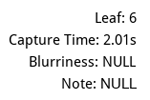
-
Leaf Number
-
Capture Time
- BlurrinessThis value is for an upcoming automatic blur detection feature.
- Leaf NoteThis value is for an upcoming revamp/improvement of the corrections workflow.
-
Footer

Contains book navigation and camera trigger controls.
-
Auto Shoot

Scribe3 can be set to automatically shoot at regular intervals. Enter the desired numeric interval into the text box, then click the Auto Shoot button to toggle the feature ON/OFF.Seconds and Deciseconds are supported.Please pay close attention to image quality when using this feature, which may suffer if operator movement is not properly in rhythm with the cameras and software. -
Spread Navigation

- Click "Previous spread" or "Next spread" to navigate back or forward one spread.
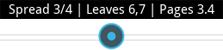
- Click and drag the spread marker across the navigation bar to travel faster between spreads.
- Hover on the spread marker to display leaf/spread information.
-
Shoot

Click "SHOOT" to trigger the cameras.- If the last spread is currently displayed, a new spread will be captured and appended.
- If an earlier spread is currently displayed, the "Reshoot or Insert Spread" dialog will appear.
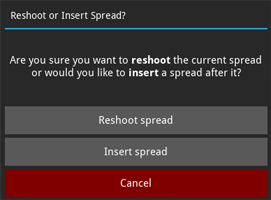
- The keyboard's Spacebar or Enter/Return key can also be used to capture a spread. Press F1 or the
 icon at the bottom right of the status bar to view a list of Scribe3's keyboard shortcuts.